Billing and Payroll Best Practice Detail
Billing and Payroll Best Practice Detail
Here is a step-by-step breakdown of the recommended best practices for doing billing and payroll from Generations.
Basic Steps
Regardless of whether you’re doing billing or payroll, the basic steps are:
- Update and confirm schedules. Work through Travel Time and/or Other Expenses if appropriate. Then run the Unconfirmed Shifts Report.
- Create Timesheets.
- Edit Timesheets.
- Review a billing and/or payroll report.
- Correct errors in the report in Schedules and create Timesheets again.
- Send the data elsewhere: QuickBooks, a third party payroll company, a CMS1500/837p, a State EVV system, and so on.
- Process information in the other software (payroll in QuickBooks, print invoices, etc.)
These steps vary based on your office procedures and the different methods of billing and payroll as noted below.
- If you send billing through a state EVV interface, please read the Help documentation for how to bill through that interface; it may be slightly different than what is documented here.
- It is your responsibility to learn how to use software other than Generations to your best advantage.
Best Practices
- To correct an error on a billing or payroll report: delete the shift and/or entire Timesheet from Edit Timesheets, change the Schedule, and create the Timesheets again.
- If you use QuickBooks, you must use the Generations Interface for QuickBooks to manage the transfer of data.
- When you get a new client, add them to Generations and link to QuickBooks.
- When you get a new Caregiver, add them to Generations and link to QuickBooks.
- When you add a new item to the Service Code or Payroll Item Master lists, link the item to QuickBooks.
- If you change a Service Code, Payroll Item, Payroll Rate, or give a raise to a Caregiver, link the item to QuickBooks.
- For holidays, if you both bill and pay all clients and all Caregivers at the same factor (such as time and a half) use the Holiday Master List; holiday pay and bill rates are calculated for you at the rate specified in the master list. If you pay and bill at different rates (or do not use holiday rates for some clients, but do for others,) you need to create Holiday Service Codes and Holiday Payroll items and payroll rates. To ensure smooth processing, link those to QuickBooks before the actual holiday.
Update and Confirm Schedules
If you use Generations EVV, the majority of the shifts will be updated and confirmed. If you receive paper timecards from Caregivers, or if you have schedules that EVV did not update:
With EVV
- Each day, review the shifts from the previous day. For example, on Tuesday, look at all of the Monday shifts.
- Confirm shifts, adjust times, and handle exceptions as needed. You can also add Other Expenses at this time.
- Add and confirm shifts that were not previously scheduled.
- Delete or Cancel shifts that did not happen.
- Repeat as needed until all shifts confirmed.
- Work through Travel Time if appropriate.
- When you think you've got them all, run an Unconfirmed Shifts Report to ensure that you truly have all shifts confirmed for the time period.
With Paper Timecards
- Put the timecards in alphabetical order.
- Go to the Schedule Grid and select that caregiver.
- Change the date range to match the pay period.
- Locate each shift. Adjust times, add Other Expenses, and confirm the shift.
- Add and confirm shifts that were not previously scheduled.
- Delete or Cancel shifts that did not happen.
- Repeat as needed until all shifts confirmed.
- Work through Travel Time if appropriate.
- When you think you've got them all, run an Unconfirmed Shifts Report to ensure that you truly have all shifts confirmed for the time period.
Create Timesheets
Create Timesheets makes a copy of the confirmed schedules and puts them behind a locked door called Edit Timesheets. Timesheets gather data that produces both billing and payroll information so all billing and payroll reports pull from Timesheets. There are only two exceptions to this rule: the Projected Billing Report that pulls from Schedules, and an option on the Gross Profit Report to pull from Schedules.
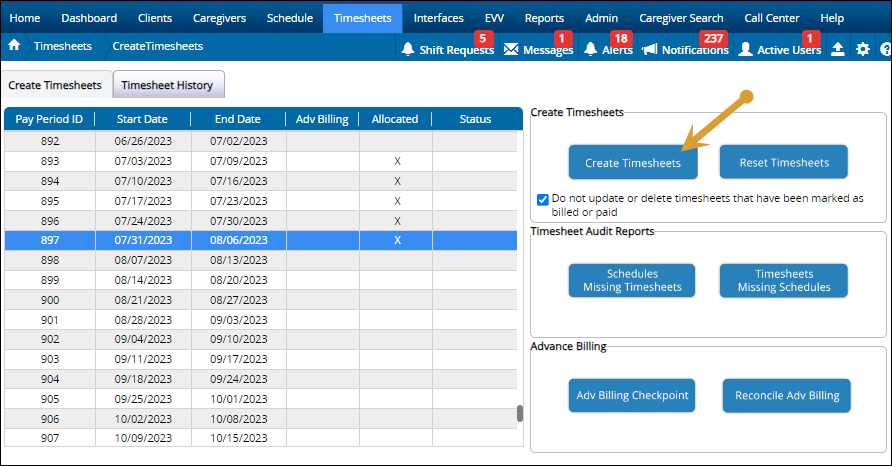
- Click the current pay period. You can only highlight one period at a time; however, in reports you can select multiple weeks or adjust days.
- Click Create Timesheets. The schedule data for the time period is copied and put behind a locked door called Edit Timesheets. You are notified of the number of records that were processed.
- If you Advance Bill, click the Advance Bill Checkpoint.
- Close the Create Timesheets area.
The Reset Timesheets button is not recommended because it deletes existing Timesheets. If you made changes to the schedule, Create Timesheets again and the changes are sent to Edit Timesheets (unless the shift is already marked as billed, paid, or received.)
IMPORTANT!
- If a Schedule is changed after Timesheets are created, those changes are not automatically added to Timesheets.
- You must click Create Timesheets again to have any Schedule changes come into Edit Timesheets or onto billing or payroll reports.
Edit Timesheets
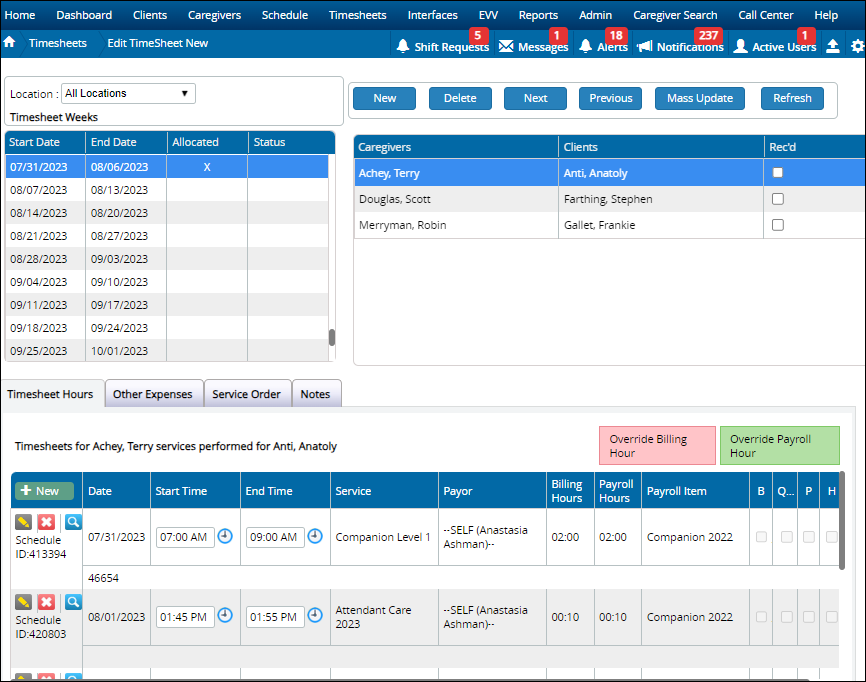
Edit Timesheets is where you add other expenses, mark Timesheets as received, and distinguish Timesheets that have been marked as billed or paid.
- And though you can make changes to hours worked here, we strongly recommend that all changes are made in the scheduling area.
- Failure to make changes in schedules can lead to discrepancies between scheduling and billing reports.
- Once you have adjusted the schedule, create Timesheets again and the adjustments are brought into Edit Timesheets (unless the shift is already marked as billed, paid, or received.)
Considerations
- Do you use paper timecards and want to keep track of which timecards were received? Add a checkmark in the “Received” box. Then use the Received Timecards Report to determine who you still need to get a paper timecard from.
- Do you need to add other expenses such as mileage, reimbursements, or supplies? You can add those to the schedule or in the Other Expenses tab here in Edit Timesheets.
- Do you need to Override Hours for Billing or Payroll? This is the place to do that and it's perfect if you need to bill the client for less hours than worked by the caregiver due to service order limitations.
Correcting Errors
- If you find errors in Edit Timesheets, the best practice is to
- delete the shift and/or entire Timesheet from Edit Timesheets
- update the Schedule, and
- create the Timesheets again.
- Once your work in Edit Timesheets is completed, it’s time to look at a report for billing (Billing Report by Client) or payroll (Timesheet Detail by Pay Period.)
Reports
The following reports may also be useful: Schedules Missing Timesheets, Timesheets Missing Schedules, Scheduled Overtime Hours, Other Expenses, Overlapping Timesheet Conflicts, Received Timecards.
Billing
By the time you get to this step, you have already updated and confirmed schedules, created Timesheets, and edited Timesheets.
Review The Billing Report By Client
For any billing work, always review the Billing Report by Client to ensure that data is correct before transferring elsewhere. This is how you double and triple check your work before sending it anywhere else.
- Both the CMS1500 and UB04 are generated from this report.
- If the report is perfect, then you are ready to proceed.

How To Correct Errors On Billing Reports
- If you find errors on billing reports, the best practice is to
- delete the shift and/or entire Timesheet from Edit Timesheets
- update the Schedule, and
- create the Timesheets again.
- Repeat until the Billing Report by Client is perfect.
Transfer Data
Once you have a perfect Billing Report by Client, send that data on to
- QuickBooks,
- Billing Export, or
- Generations Invoices/Estimates.
If You Use The CMS1500/837p or UB04/837i
- Both pull from the Billing Report by Client.
- Save the file to your computer.
- Send the file elsewhere as needed; for example, upload the 837p to a clearinghouse for further processing.
If You Use QuickBooks For Billing
The transfer of data for invoices from Generations to QuickBooks is slightly different depending on whether you're using the desktop or online version of QuickBooks. Please refer to the following for details:
- Transfer invoices to desktop QuickBooks
- Transfer invoices to online QuickBooks
The basic procedure is:
- Select Transfer Invoices to QuickBooks.
- Use the CTRL and SHIFT keys to select all or some of the clients you wish to invoice. You can also click “Select All.” Use the Client Type list to select a specific group of clients.
- Establish other parameters as required for this invoice.
- Click OK.
- The interface checks to be sure that data between Generations and QuickBooks is the same. If there are discrepancies, they must be resolved before you can transfer data.
- Once validation is complete, you are asked if you wish to transfer the invoice(s.) Say yes.
- The invoice data is pushed to QuickBooks, and you are notified that the Timesheet data in Generations has been marked as billed.
- To see an invoice in QuickBooks, go to the Customer Center, select a specific client and double-click on the invoice.
If You Use Billing Export
This is used by a custom accounting system or for analyzing billing via Microsoft Excel.
- Select Billing Export either on the Home Screen or from the Interfaces list at the top of the Home Screen.
- Select parameters as desired.
- Best practice is to Mark Timesheets as Billed. This initiates the new invoice number.
- Click OK.
- A .csv file is created.
- Save the file to your computer.
If You Use Generations Invoices and Estimates
Before using the Generations Invoices and Estimates, set up the appropriate invoice or estimate number in Company Settings > Other Options.
- Open Create Invoices/Estimates under the Timesheets list at the top of the Home Screen.
- Select appropriate parameters.
- Best practice is to Mark Timesheets as Billed. This initiates the new invoice number.
- For invoices, click OK. For Estimates, put a checkmark in the “Estimates” box and click OK.
- Save the file to your computer.
Processing Billing Information
No doubt there are additional steps you need to take in QuickBooks or your third party company’s proprietary software to complete your work. For example, if you have just sent invoices to QuickBooks, you will need to print or email the invoice to your Client. It is your responsibility to learn how to utilize software other than Generations to your best advantage.
Payroll
This information is appropriate regardless of whether you are creating Timesheets in QuickBooks for employees or bills for independent contractors (also known as vendors.) By the time you get to this step, you have already updated and confirmed schedules, created Timesheets, and edited Timesheets.
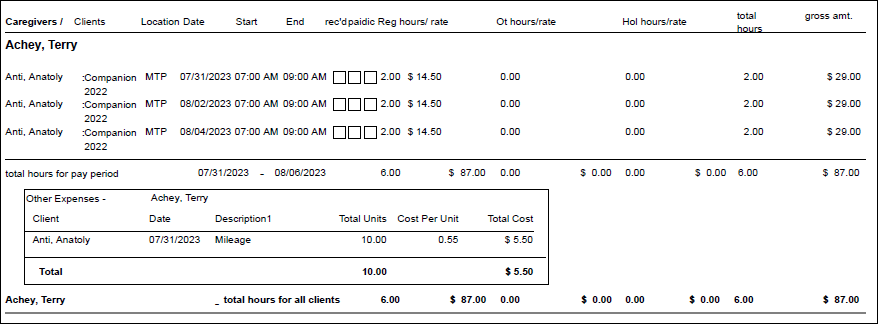
Review The Timesheet Detail By Pay Period Report
For any payroll, always review the Timesheet Detail by Pay Period report to ensure that data is correct before transferring elsewhere. Make sure you have the correct pay period selected.
- Use the shift or control keys to select multiple weeks.
- If this report is perfect, then you are ready to transfer information to a third party, typically QuickBooks, ADP, or Paychex.
- You may find another payroll report works better for you.
How To Correct Errors On Payroll Reports
- If you find errors on any payroll report, the best practice is to
- delete the shift and/or entire Timesheet from Edit Timesheets
- update the Schedule, and
- create the Timesheets again.
- Repeat until the payroll report is perfect.
Transfer Data
Once you have a perfect timesheet report, send that data on to
How To Transfer Timesheets or Bills to QuickBooks
The transfer of Timesheets or Bills from Generations to QuickBooks is slightly different depending on whether you're using the desktop or online version of QuickBooks. Please refer to the following for details:
- Transfer timesheets or bills to desktop QuickBooks
- Transfer Timesheets or Bills to QuickBooks Online
- Select Create Timesheets in QuickBooks.
- Select the appropriate Timesheet Week(s.)
- Establish other parameters as required.
- Click Transfer to QuickBooks.
- The interface checks to be sure that data between Generations and QuickBooks is the same. If there are discrepancies, these must be resolved before you can transfer data.
- Once validation is complete, you are asked if you wish to transfer the Timesheet. Say yes.
- The Timesheet data is pushed to QuickBooks, and you are notified that the Timesheet data in Generations has been marked as paid.
- To view time data in QuickBooks desktop, on the Home screen click "enter time" and then "use weekly timesheet." Select the appropriate week and employee.
- Follow directions in QuickBooks to add other expenses and create checks.
- For independent contractors, a “bill” has been created; view the bill under Pay Bills or Vendor Center.
How To Export To ADP, Paychex, And Other Third Party Payroll Companies
Note: Please refer to Payroll for specific instructions for the company you are working with as there are small differences depending on the company. The basic steps are as following:
- Click the Payroll Export icon or select the same from the Interfaces list at the top of the Home Screen.
- Choose the appropriate company.
- Select the appropriate week or weeks.
- Best practice is to Mark Timesheets as Paid.
- Click OK and a file is created.
- Save the file to your computer.
Process Payroll Information
No doubt there are additional steps you need to take in QuickBooks or your third party company’s proprietary software to complete your work. For example, if you have just sent Timesheets to QuickBooks, you will need to work through the payroll process in QuickBooks to create checks to pay your employees. It is your responsibility to learn how to utilize software other than Generations to your best advantage.
These steps vary based on your office procedures and the different methods of billing and payroll as noted. If you experience any difficulty, please use Live Chat for assistance.
Related Articles
Billing and Payroll Best Practice Detail
Billing and Payroll Best Practice Detail Here is a step-by-step breakdown of the recommended best practices for doing billing and payroll from Generations. Basic Steps Regardless of whether you’re doing billing or payroll, the basic steps are: Update ...Late Timesheets Best Practices
Late Timesheets Best Practices The key to running late Timesheets accurately is using paid and unpaid correctly. When you do a payroll export or transfer Timesheets to QuickBooks, the Timesheets are marked as paid. The 'unpaid' box allows Generations ...Late Timesheets Best Practices
Late Timesheets Best Practices The key to running late Timesheets accurately is using paid and unpaid correctly. When you do a payroll export or transfer Timesheets to QuickBooks, the Timesheets are marked as paid. The 'unpaid' box allows Generations ...Illinois HHAX
Illinois HHAX Private notes DO NOT PUBLISH! See https://youtrack.idb-sys.com/issue/GEN-3620/Illinois-EVV-HHAX-IL Agency thought they needed HHAX, but they do not provide the services for DHS IDDD Holding in case we do have an agency that requires ...Other Expenses
Other Expenses Other Expenses are services you bill the Client for that are not scheduled. Other Expenses are maintained in the Service Code Master List. Examples of Other Expenses: agency fee, bonus, gas reimbursement, initial client deposit, ...