- Login and logout are based on proximity to the Client's geolocation on their Personal Data screen in Generations.
- The most reliably accurate location comes from a satellite; therefore, the Generations App only retrieves GPS coordinates from satellites. Because of this, we strongly recommend that anyone logging in via the app have a clear line of sight to the sky: they should either be near a window or outside of the building.
- Additionally, while the app is attempting to determine the location, and you see a countdown. If desired, you can cancel out of the countdown and use the client's phone to call into your office's EVV phone number.
GPS for Caregivers
GPS for Caregivers
To use GPS visit verification, you must use a device that can access the internet and has GPS-enabled.
- GPS location services is typically offered on Android and iPhone phones, tablets, and similar devices.
- To use GPS, you must download and use the mobile app; learn more about both of those at the Mobile Overview.
- Information about other functionality in the mobile website and apps can be found here.
- If you are cannot use the app to login or logout, use the Client's telephone. Be sure to have your EVV ID for reference.
Check Your Device for GPS Capability
- Does your device have a data plan or otherwise have access to the internet? If the device does not have a data plan or access to the internet, you must log in and out of shifts using a telephone.
- Has the Generations app been installed? GPS visit verification occurs when the Caregiver uses the Generations app or mobile website to log in and out of shifts. If the app cannot be installed, and you cannot sign into the mobile website, you use a telephone to call in and out of shift.
- Does your device have location services available? Are those services turned on? If the device does not have location services, you must log in and out of shifts using a telephone. If you have location services turned on, and are still not sure if you are getting accurate readings, try a GPS app; search on your device's app store for one.
NOTES
Setup
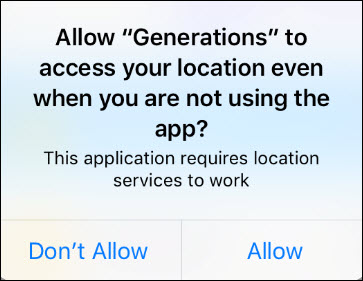
The first time you access the app, you are prompted to allow Generations to access your location. Allow this. Without location allowed you cannot use GPS login.
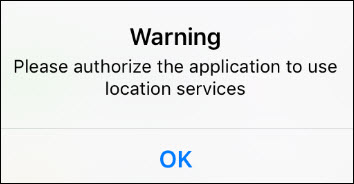
If you don't allow this, when you attempt your first login you will be prompted to authorize the app to use location services.
Tips for Accurate GPS
iPhone
Tap settings and scroll to Generations. Tap to view the settings specific to Generations and be sure that
- Location is set to always
- Notifications are turned on
- Cellular Data is turned on.
Also check the Settings > Privacy > Location Services and make sure that is on.
Try turning the phone on/off, turning location services off/on, turning airplane mode on/off, closing all other open applications before trying Generations again, and updating the Generations app.
A soft reset also might help: press and hold the Sleep/Wake button and power button at the same time for about 10 seconds. Release the buttons when you see the Apple logo.
Android
Tap settings, then app, and scroll to Generations. Tap to view the settings specific to Generations and be sure that
- Permissions are enabled for Camera, Location, and Storage.
- Notifications are turned on
Also check Settings > Locations to make sure that is on. High Accuracy mode may be helpful; turn this on via Settings > Location > Mode.
For troubleshooting GPS issues, try turning locations off/on, closing all other open applications before trying Generations, and updating the Generations app.
A soft reset also might help: turn off your device, wait for the screen to turn black, and press the power button again to turn the phone back on.
Another thing that may work is recalibrating the GPS with a compass app (your device may already have one or search the Google Play store.) Open the compass app, tap compass. Pick up your phone and rotate it slowly three times vertically, front to back vertically three times, and finally horizontally three times from front to back.
Logging In and Out of Shifts
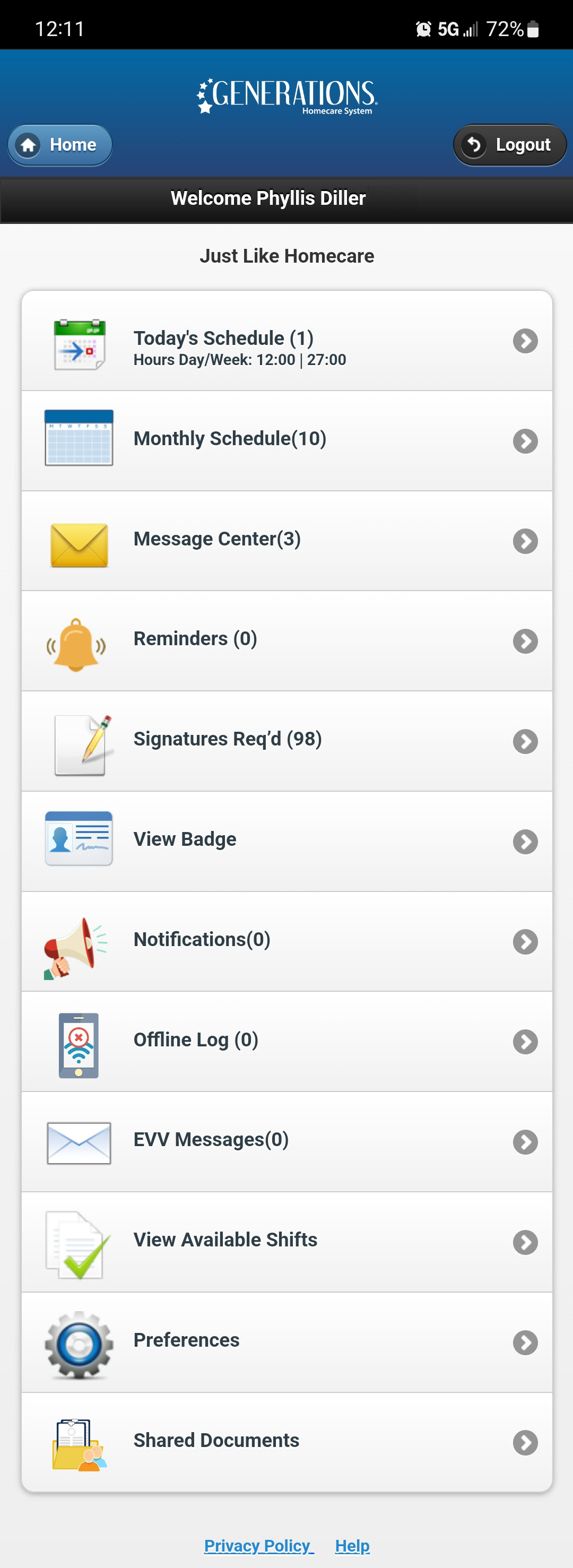
Sign into the app or mobile website and you see the following home screen. Tap Today's Schedule to see today's shifts.
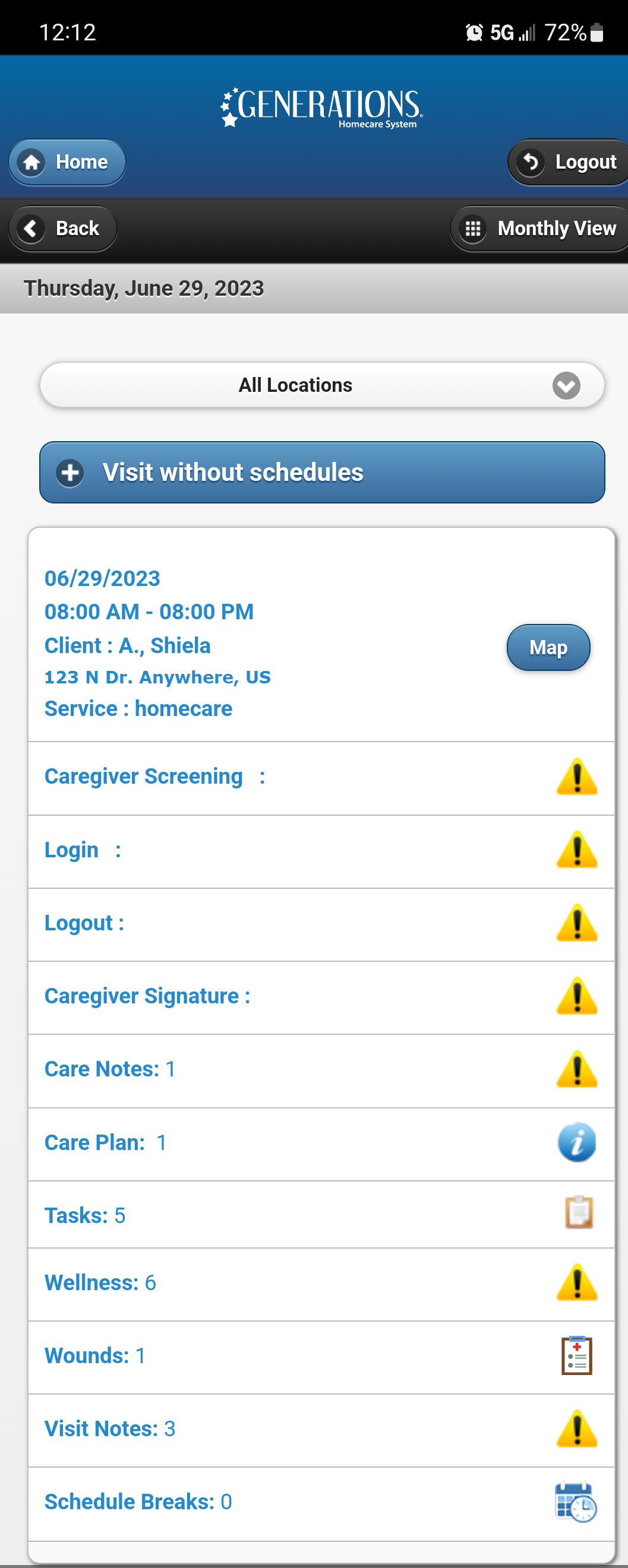
Tap Visit Login to login, and Visit Logout to logout.
The following message is displayed as GPS is obtained.
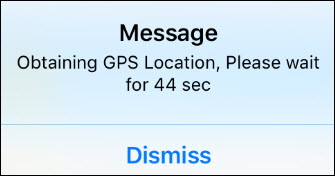
You can cancel out of the countdown and use the client's phone to call into your office's EVV phone number. Note that even if you receive this message, the GPS may be obtained and your login will be successful.
A successful login or logout is based on proximity to the Client's geolocation on their Personal Data screen in Generations. That geolocation can be where the driveway meets the street, near the front door, or somewhere else near the location as determined by the agency.
If there are GPS difficulties, the below message may appear. Note that even if you receive this message, it may be possible to obtain GPS and login successfully.
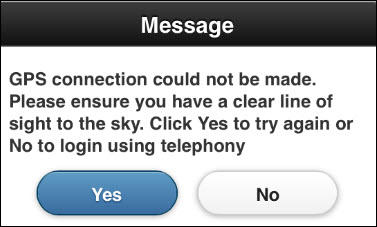
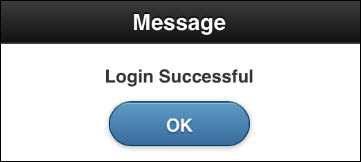
If the login succeeds, a green checkmark appears on the shift and you receive a message that login was successful.
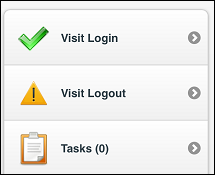
- If the GPS is not verified, you see "unverified" in red text.
- If GPS exceeded the allowed distance from the Client's location, you see the variance in number of feet. For example, if you are 1000 feet from the allowed variance, you see "Variance 1000."
- If GPS is verified, the word "verified" appears in green text.
Logging Out Of Overnight Shifts
Take extra care when logging out of shifts that extend past midnight. These shifts can be found by looking on the day the shift starts. For example, if a shift goes from 9pm on Tuesday to 9am on Wednesday, the shift can be found on Tuesday. Use the Monthly View button in the upper right corner to select the appropriate day.
Related Articles
Text via Email
Text via Email Text via Email uses an email address to send a text to a caregiver. That email address is the caregiver's cell phone number plus the correct format for their cell phone carrier. We use an API that transforms the email address into a ...Wellness Groups and Questions
Wellness Groups and Questions Wellness is a way to monitor the client's well-being to potentially minimize ER visits and re-hospitalizations. Using Generations EVV Caregivers answer questions about the Client regarding things like blood pressure ...Late Timesheets Best Practices
Late Timesheets Best Practices The key to running late Timesheets accurately is using paid and unpaid correctly. When you do a payroll export or transfer Timesheets to QuickBooks, the Timesheets are marked as paid. The 'unpaid' box allows Generations ...Late Timesheets Best Practices
Late Timesheets Best Practices The key to running late Timesheets accurately is using paid and unpaid correctly. When you do a payroll export or transfer Timesheets to QuickBooks, the Timesheets are marked as paid. The 'unpaid' box allows Generations ...Illinois HHAX
Illinois HHAX Private notes DO NOT PUBLISH! See https://youtrack.idb-sys.com/issue/GEN-3620/Illinois-EVV-HHAX-IL Agency thought they needed HHAX, but they do not provide the services for DHS IDDD Holding in case we do have an agency that requires ...