Text via Email
Text via Email
Text via Email uses an email address to send a text to a caregiver. That email address is the caregiver's cell phone number plus the correct format for their cell phone carrier. We use an API that transforms the email address into a compatible format so the message is pushed from Generations to the carrier and on to the caregiver. Replies go to your email.
- You can use Text via Email even if you do not use the Message Center or have an SMS subscription; however, please be aware that some providers randomly block or delay messages from Generations which may impact the efficiency of text via email.
- This is very different than SMS Messages, which is more commonly known as texting. SMS is direct phone number to phone number and supports two-way communication.
- As a best practice, do not send any electronic messages (including emails, text messages, and reports) that contain identifiable Client information like full name, address, phone, date of birth, etc. This Client information can easily be hidden from Caregivers when they use the App or Web Portal; see controls in Company Settings > Web Portal.
Video
Watch a video about text messaging setup and sending.
Add Text Via Email in Caregiver's Personal Data
Because there is typically a fee associated with texting on smartphones, verify that the Caregivers are open to receive text messages. The number entered here MUST be a valid mobile phone number or email address. For example, if a Caregiver's phone number is 989-621-8763 and the carrier is Cricket, the correct text message format is 9896218763@sms.mycricket.com.
- Get the Caregiver's cell phone number and cell provider/carrier.
- Enter the phone number in the Text Msg# field with no spaces: 9896218763
- Select the Carrier. Read more about these below.
- (Optional) Assign a Text Msg Group.
- Click update in the lower right corner to save your work.

Cell Phone Carrier Format
We added the formats for many carriers; however, we do not know all formats for all carriers around the world. If a carrier is not in Generations, you can determine the correct format in several ways.
- Have the caregiver send a text message to your email address. This is the fastest way to determine the carrier format.
- Contact the provider.
- Review the Wikipedia list of US mobile virtual network operators.
- Search for the correct format; for example, to find a Straight Talk address via Google, search "email to text Straight Talk."
Once you have the correct format, be add it to the Cell Carrier Master List.
Cell Phone Carriers
| Provider | Messaging Format |
|---|---|
Alaska Communications | AreaCode+Mobile@msg.acsalaska.com |
Alltell | AreaCode+Mobile@message.alltel.com |
Assurance Mobile | Assurance can be provided by several different networks: Virgin Mobile, Sprint, etc. You need to know which network the caregiver's phone uses. |
AT&T | AreaCode+Mobile@txt.att.net |
Bluegrass Cellular | AreaCode+Mobile@sms.bluecell.com |
Boost | AreaCode+Mobile@myboostmobile.com |
Cellular South | AreaCode+Mobile@csouth1.com |
Cincinnati Bell | AreaCode+Mobile@gocbw.com |
Cingular | 1+AreaCode+Mobile@mobile.mycingular.com |
Cricket | AreaCode+Mobile@sms.mycricket.com or AreaCode+Mobile@mms.mycricket.com |
GCI Wireless | AreaCode+Mobile@gci.net |
Helio | AreaCode+Mobile@myhelio.com |
MetroPCS | AreaCode+Mobile@mymetropcs.com |
NET10 | NET10 can be provided by several different networks: AT&T, Verison, etc. You need to know which network the caregiver's phone uses. |
Nextel | AreaCode+Mobile@page.nextel.com |
Qwest | AreaCode+Mobile@qwestmp.com |
Rogers | AreaCode+Mobile@sms.rogers.com or 1AreaCode+Mobile@mms.rogers.com |
Simple Mobile | AreaCode+Mobile@tmomail.net or AreaCode+Mobile@smtext.com |
SouthernLINC | AreaCode+Mobile@page.southernlinc.com |
Sprint | AreaCode+Mobile@messaging.sprintpcs.com |
Straight Talk | AreaCode+Mobile@mypixmessages.com |
T-Mobile | AreaCode+Mobile@tmomail.net |
Text Now | AreaCode+Mobile@textnow.me |
US Cellular | AreaCode+Mobile@email.uscc.net |
Verizon | AreaCode+Mobile@vtext.com |
Virgin | AreaCode+Mobile@vmobl.com |
Add Carriers To The Cell Carrier Master List
Once you add a carrier's information to the master list, it is available to select in the caregiver's personal data page.
- From the Home Screen, go to Caregivers > Cell Carrier Master List.
- Click the green +New button.
- Enter the name of the carrier.
- Add the unique extension.
- Save.
Text Message Groups
Text Message Groups are a way to further define a group of Caregivers.
- For example, many Caregivers can have the Classification of CNA, but only half of those are available to work overnight shifts.
- By defining a Text Message Group of "Overnight," you can send a text message to only those Caregivers who have indicated that they are interested in overnight shifts.
- You can also quickly update the group shown in the caregiver's personal data by using Mass Update.
Add Text Message Groups
- From the Home Screen of Generations, go to Caregivers > Text Message Groups.
- Click the green +New button.
- Type a description.
- Save.
Send Text via Email
There are several places in Generations to send text messages from:
- Caregiver Personal Data Page
- Interfaces Menu on the Home Screen
- Caregiver Search
Remember, the caregiver responses go to your email, so you may need to check your junk mail to find the responses.
Caregiver Personal Data Page
Use this option to send a text message to one person.
- Click "Send Text Message" and complete the rest of the information and hit send.
- Your screen will look a little different if you do not have the Message Center enabled.
Caregiver Search
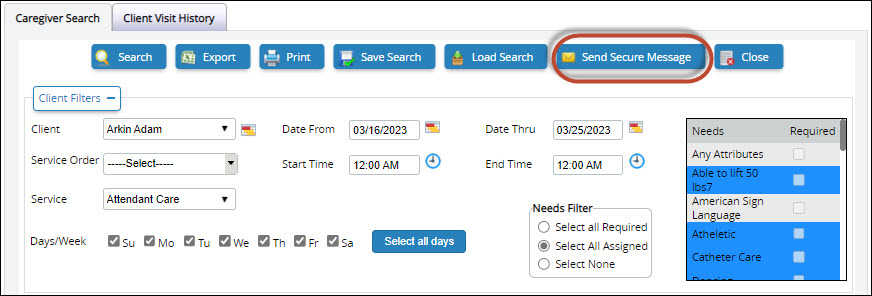
When you've completed a Caregiver Search and have a list of available Caregivers, click the Send Secure Message button and all available caregivers are automatically highlighted.
- The message is only secure if using Message Center.
- If your agency has the Message Center enabled, the message sends through the Message Center and not as a text via email.
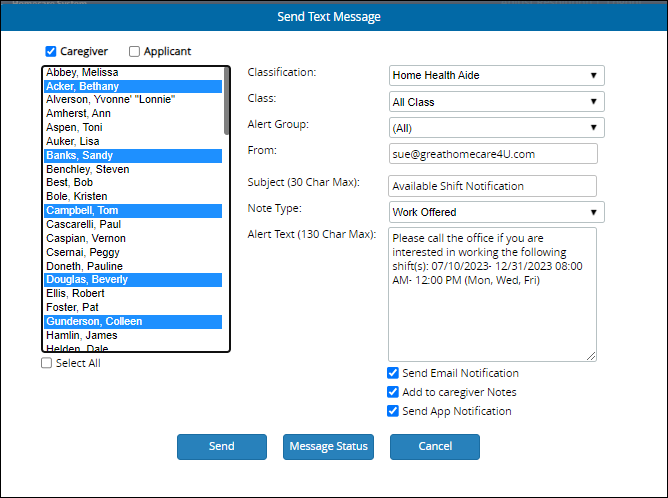
- Caregiver/Applicant: Caregiver is selected automatically. Applicant is optional.
- List of Caregivers: The available caregivers are highlighted. If you need to include more people, hold your CNTRL key down and select them.
- Select All: Click to select everyone on the list.
- Classification: (Optional) Select the appropriate skill level.
- Class: (Optional) Select the appropriate Class.
- Alert Group: (Optional) Select the appropriate Text Msg Group.
- Subject: Added automatically by Generations. Edit as you please.
- Note Type: Add an appropriate caregiver Note Type.
- Alert Text: Added automatically by Generations. Edit as you please.
- Send email notification: Click to have a notification about the text sent to the caregiver's email address.
- Add to caregiver Notes: Click to have a copy of the text placed in the caregiver's Notes.
- Send app notification: Click to have a notification appear on the mobile app. If you use the Message Center, you will see "Send text notification" here.
- Send: Click to send the message. The text is sent. The text is also visible in the History tab of the Caregiver's file.
- Message Status: Click to see the status of the message and determine if it was successfully sent from Generations or not.
Interfaces Menu on the Home Screen
This area is perfect for sending text via email to more than one Caregiver at a time. Please note that the title of what you see for texting under the Interfaces Menu on the Home Screen differs depending on what is enabled in your database.
- If you do not have the Message Center enabled, you see Text Messaging.
- With the Message Center enabled, you see Secure Messaging.
When A Text Via Email Fails
Generations automatically sends texts, emails, and alerts from our servers as if they are coming from you.
- Generations makes the best effort to ensure your messages are delivered; however, there are hundreds of variables that go into sending and delivering messages in a timely manner.
- Once they leave our servers, we cannot track further because the message is handled by the recipient's servers.
- Learn more as to why some providers randomly block or delay messages from Generations and what you can do about it.
Related Articles
GPS for Caregivers
GPS for Caregivers To use GPS visit verification, you must use a device that can access the internet and has GPS-enabled. GPS location services is typically offered on Android and iPhone phones, tablets, and similar devices. To use GPS, you must ...Billing and Payroll Best Practice Detail
Billing and Payroll Best Practice Detail Here is a step-by-step breakdown of the recommended best practices for doing billing and payroll from Generations. Basic Steps Regardless of whether you’re doing billing or payroll, the basic steps are: Update ...Billing and Payroll Best Practice Detail
Billing and Payroll Best Practice Detail Here is a step-by-step breakdown of the recommended best practices for doing billing and payroll from Generations. Basic Steps Regardless of whether you’re doing billing or payroll, the basic steps are: Update ...Illinois HHAX
Illinois HHAX Private notes DO NOT PUBLISH! See https://youtrack.idb-sys.com/issue/GEN-3620/Illinois-EVV-HHAX-IL Agency thought they needed HHAX, but they do not provide the services for DHS IDDD Holding in case we do have an agency that requires ...Other Expenses
Other Expenses Other Expenses are services you bill the Client for that are not scheduled. Other Expenses are maintained in the Service Code Master List. Examples of Other Expenses: agency fee, bonus, gas reimbursement, initial client deposit, ...